
← Screen Change WatcherA little help.
A little help.
Back to watching.
Setup, everyday controls, and answers for Screen Change Watcher on Windows.
Your first watch.
- Install through Microsoft Store. Start the trial or use your purchase. Open Screen Change Watcher on your Windows desktop.
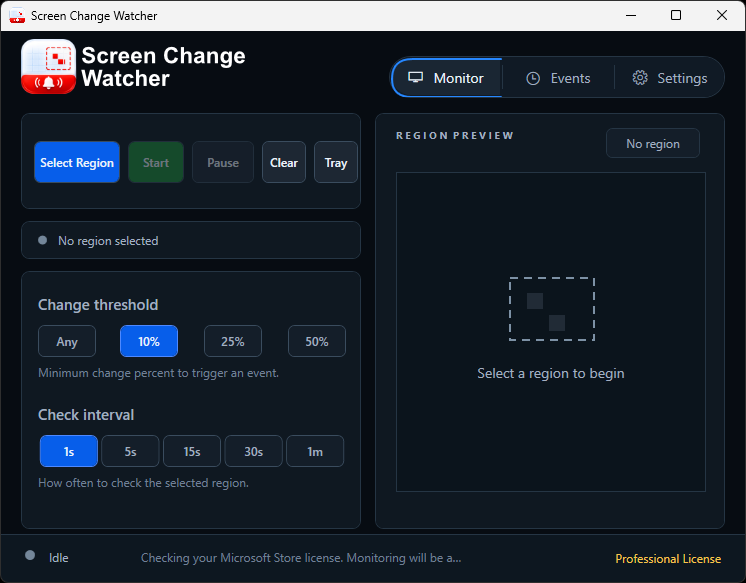
- Select a region. Choose Select Region and drag over the visible content you want to monitor. Check the preview.
- Choose the threshold and interval. Start with the presets, then adjust sensitivity to the content you are watching.
- Set your alerts. In Settings, choose your sound, notification, outline, and banner preferences. Use Test sound to check audio.
- Choose Start. Keep the watched content visible. Pause or stop from the app or the tray when you are done.
Before you start.
Use Windows 10 build 19041 or later, or Windows 11, on an x64 computer. The current Store package is x64 only. You need an active Microsoft Store trial or purchase to monitor.
The app watches one visible region at a time. The content must remain uncovered on your desktop, even if Screen Change Watcher itself is minimized.
Find your answer.
Why am I getting too many alerts?
A clock, animation, cursor, or changing number inside the selection can count as a visual change. Select a tighter region, increase the change threshold, use a longer check interval, or configure the cooldown in Settings → Alerts.
Why didn’t I receive a Windows notification?
Windows controls notification visibility and Do not disturb. Check Windows notification settings and Settings → Notifications in the app. Sound and the change banner work independently of Windows notifications.
Why did monitoring stop after locking Windows or changing displays?
Capture requires a visible desktop. Monitoring stops on a Windows lock or display-layout change to avoid watching the wrong pixels. After unlocking, choose Start. After changing displays, select the region again.
Where did the app go when I minimized it?
If you chose system-tray behavior, look beside the Windows clock or in the hidden-icons menu. Enable the icon through Windows Settings → Personalization → Taskbar. Settings → Startup lets you choose taskbar or tray behavior.
Why is my Microsoft Store license unavailable?
Install or acquire the app through Microsoft Store and sign in with the account that owns the trial or purchase. Choose Settings → About → Refresh license in the app. A copied executable or development package does not grant a Store license.
Is my event history saved?
History is session-only by default. Settings → History can keep the latest 2,000 events locally. Export CSV or JSON for a permanent copy. Turning retention off removes the saved history file; screenshots and exports remain separate.
Where are screenshots saved?
When screenshot saving is enabled, choose Settings → Alerts → Open folder to find the actual destination. Change folder lets you select another location. Screenshot saving is off by default.
How do I stop monitoring or clear an alert?
Use the monitoring controls to stop or pause. Choose Clear on the Monitor screen, click the change banner, or use Acknowledge alert in the tray menu to dismiss active alerts and stop repeats. Fully exiting stops monitoring.
What can Screen Change Watcher monitor?
One rectangular region of visible desktop pixels, including visible browser, app, remote-session, or virtual-machine windows. It does not inspect background tabs, files, app internals, or APIs. The watched area must remain visible; protected content may not be capturable.
What happens after the trial?
The 7-day trial includes all features. A Microsoft Store purchase is required to keep monitoring after the trial expires. Trial and Professional licenses offer the same functionality.
Still need a hand?
Contact 417 Solutions and mention Screen Change Watcher. Include the app version from Settings → About, your Windows version, what you expected, and what happened.
Remove sensitive information from screenshots or exported logs before sharing them.
Contact 417 Solutions →