

← 417 ClickerA little help.
A little help.
Back to clicking.
Setup, Free Version limits, and answers for 417 Clicker on Windows.
Your first session.
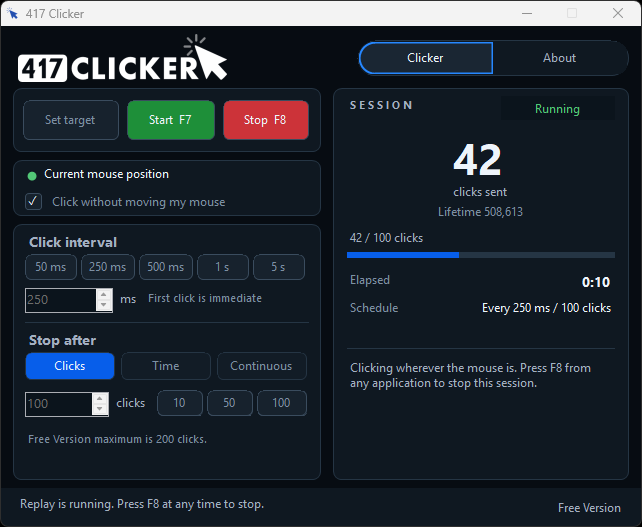
- Install through Microsoft Store. Open 417 Clicker on your Windows desktop. The Free Version is ready to use.
- Choose where to click. Use Set target, then click the button or field you want. That click still reaches the app underneath. Or turn on Click without moving my mouse to follow the pointer.
- Choose the schedule. Pick an interval and a stop rule. Free Version covers click-count runs of up to 200 clicks, at 250 ms or slower.
- Start with F7. The first click is immediate. Stop with F8 from any window, or use Stop in the app.
- Upgrade if you need more. Professional unlocks 50 ms clicks, custom intervals, timed sessions, and continuous clicking. Buy Pro Upgrade in Microsoft Store, then choose Refresh license on the About page.
Before you start.
Use Windows 10 version 2004 (build 19041) or later, or Windows 11, on an x64 computer. A keyboard is recommended for F7 and F8. Microsoft Store is required to purchase and restore Pro Upgrade.
Run 417 Clicker at the same privilege level as the app you want to click. Windows does not allow a normal desktop app to click into an elevated (Run as administrator) window.
Find your answer.
How do I set a target?
Choose Set target. The window minimizes. The next left-click is recorded as the X/Y coordinate and still clicks the app underneath. 417 Clicker then comes back. That saved coordinate is not a screenshot.
What does Click without moving my mouse do?
When that option is on, 417 Clicker clicks at the current pointer location and does not use a saved target. Set target is disabled. You can keep using the mouse while a session runs.
What are the Free Version limits?
Free Version covers click-count sessions of up to 200 clicks, with interval presets of 250 ms, 500 ms, 1 second, and 5 seconds. Start is disabled for Time and Continuous. 50 ms looks locked; choosing it explains that Professional is required. You can keep using the Free Version as long as you want.
What does Professional unlock?
Professional unlocks 50 ms clicks, custom intervals, timed sessions, and continuous clicking until you press F8. Upgrade with a one-time Pro Upgrade purchase in Microsoft Store.
Why is my Pro Upgrade not unlocking?
Install or acquire the app through Microsoft Store and sign in with the account that owns Pro Upgrade. Open About and choose Refresh license. A copied executable or local test build cannot prove a Store purchase, so Free Version limits stay in place until Store ownership is confirmed.
Why won’t it click the window I want?
If the target app is running as administrator, 417 Clicker must also run as administrator. Keep both at the same privilege level. Also confirm the saved target still matches that button or field, or use Click without moving my mouse.
Where are my settings stored?
Preferences for the current Windows user are stored locally in the registry, including the saved target, schedule, and lifetime click count. They are not synced to 417 Solutions. Uninstalling may leave HKEY_CURRENT_USER\Software\Clicker; you can delete that key in Registry Editor if you want it gone.
Does 417 Clicker send my clicks to 417 Solutions?
No. Clicks are sent locally on your computer. The app includes no advertising or analytics SDK and does not upload click locations, mouse movement, or settings. See the privacy policy.
Still need a hand?
Contact 417 Solutions and mention 417 Clicker. Include the app version from About, your Windows version, what you expected, and what happened.
Remove sensitive information from screenshots or logs before sharing them.
Contact 417 Solutions →